What to do
- Use the original PDF for statements, payslips or reports that are already digital.
- Photograph every required side and page, then check readability and page order.
- If you are asked for a replacement, fix the specific issue and open the final file again.
Start with the best copy you can get
Download the complete PDF from the issuer if the document is digital. Check that it includes the cover page, continuation pages and final page. A screenshot of a bank balance rarely contains everything a reviewer needs.
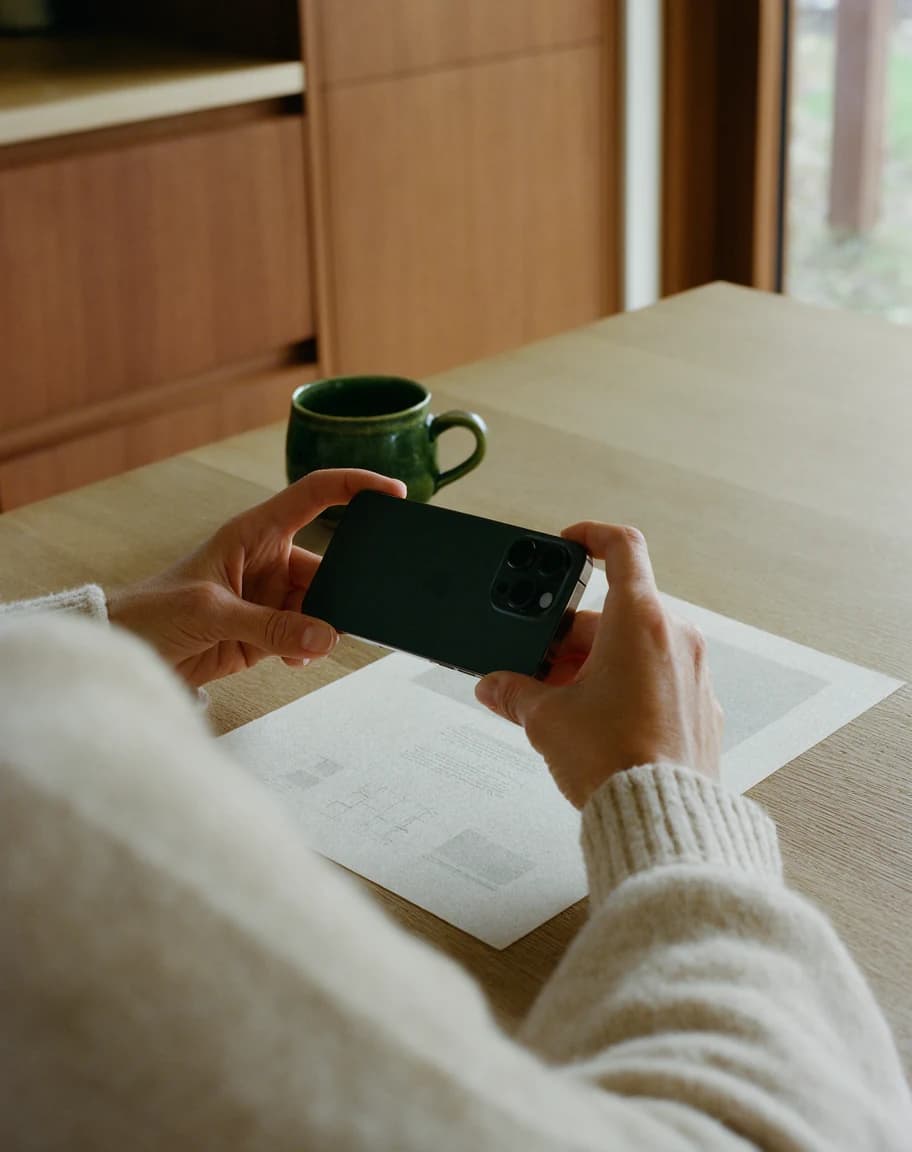
For paper, remove it from a shiny sleeve, flatten it and use a plain surface that contrasts with the edges. Turn off the flash if it causes reflections. Hold the phone directly above the page and wait for the camera to focus.
Check the final file before you submit
Open the saved image or PDF. Zoom in on the smallest text, a signature or the date. Repeat for every page if the document is short. Pay particular attention to page edges, tables and light ink.
- Each required side and every page is included once.
- Dates, names, totals and signatures are readable at normal zoom.
- All four edges are visible. Shadows and glare leave the text clear.
- Pages are upright and in order. The document matches the item and dates on the request.
Upload a complete file to the matching item
If the request expects one complete file for a multi-page document, use your phone’s scanning function to save the pages as one PDF. Open it and confirm the page count. For example, the signature page of a four-page letter should be page four of that same PDF.
Open the upload link and select the named item that matches the file. If the portal asks for a retake, read the reason before choosing a replacement. A wrong date range requires another statement. A cut-off edge requires a new scan of the correct page.